
Start Drawing#
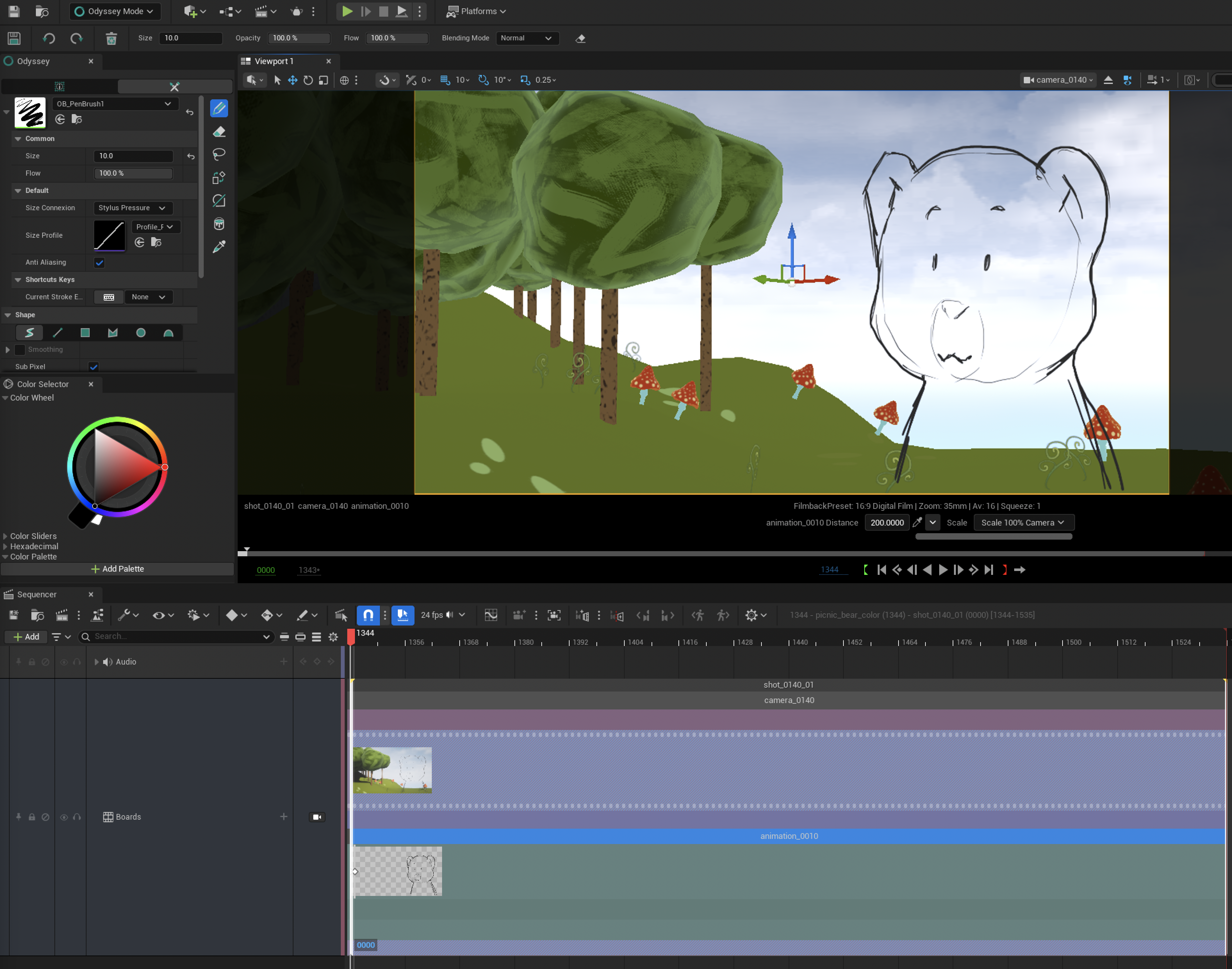
After creating your first Camera and Animation Actor, you will be able to enable the Odyssey Editor Mode to draw something:
Tip
Before starting to draw something, don’t forget to select the Animation Actor first (it must be highlighted in blue).
Add new Cells#
In the context of storyboard, Animation Actors will contain at least 1 layer with a post-behavior “Hold”. If you want to insert another Cell, you can hit this button to break the current Cell and generate a new empty Cell:

Cells exposure#
There are 3 ways to adjust the timing of the Cells:
From the Board View, by moving the tiny diamond-shaped keys.
From the Timeline panel
From within the Shot Sequence
Delete Cells#
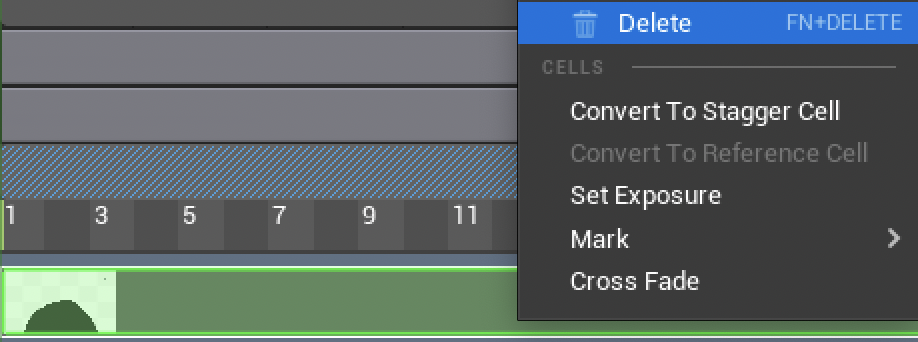
This can only be achieved from the Timeline panel or within the Shot Sequence:
Warning
Never, ever, use Delete or Backspace or you might delete the Animation Actors and its reference to the Level and Sequence, which can cause a crash.
The Light Table#
The Light Table can be enabled from the Timeline panel or within the Shot Sequence, as it is enabled per Layer.
Add Layers#
Additional Layers shall be created from the Timeline panel or within the Shot Sequence.