
2D Paint Tool Collection#
Thanks to the 2D Paint Tool Collection, you will save precious time by making a library of your favorite Raster & Vector Tools with their specific configuration (size, blending mode, aspect, etc).
Panel#
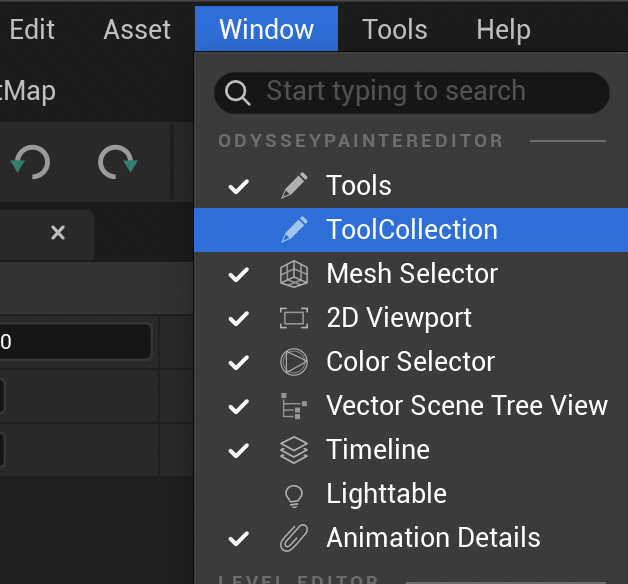
Go to the menu Windows to enable the Tool Collection panel:
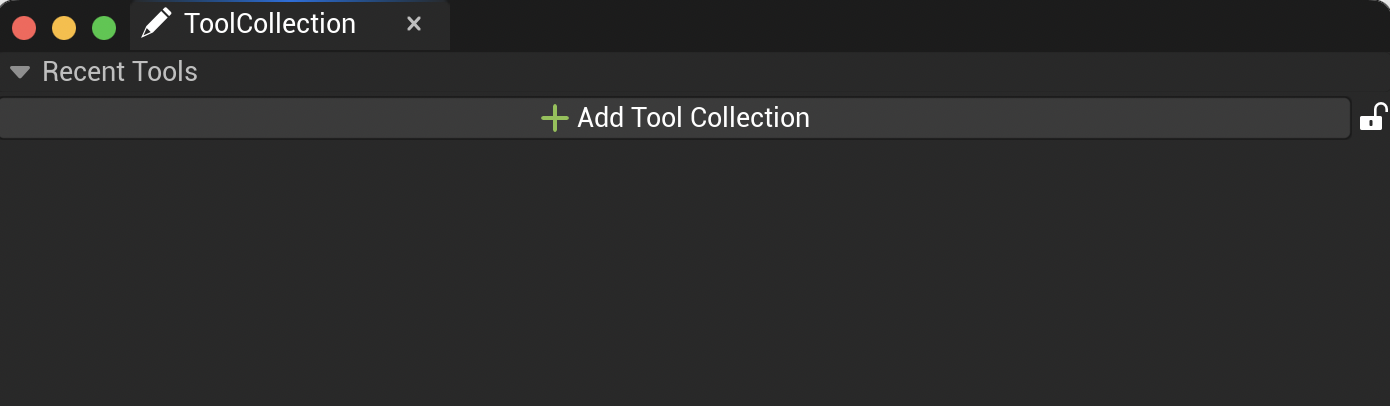
This panel will appear:
Tip
Hold the click on the main tab to dock this panel.
Recent Tools#
The Tool Collection panel will recall the tools used recently in the canvas.
Warning
If you close the 2D editor, it will reset the collection of recent Tools.
2D Paint Tool Collection Asset#
Create#
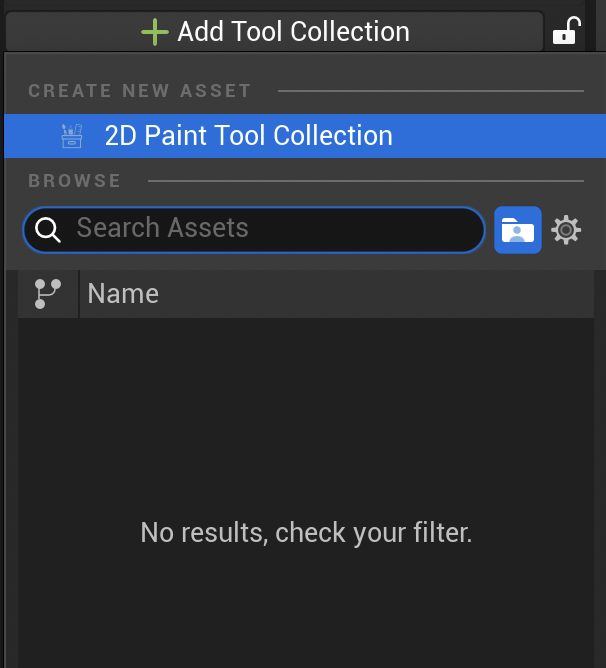
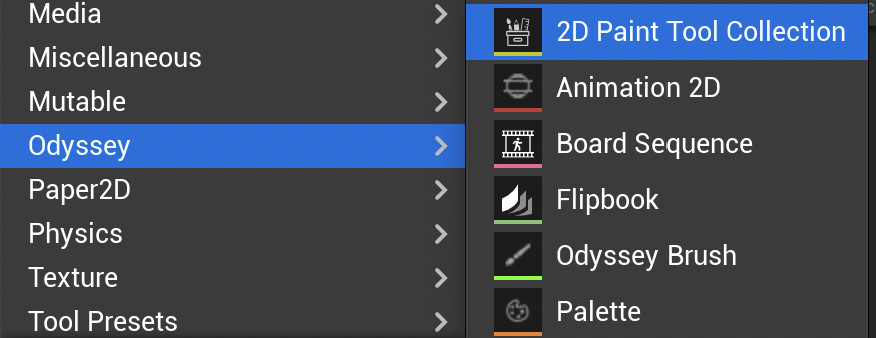
If you want to keep the configuration of your tools, you must create a 2D Paint Tool Collection. To do so, click on “Add Tool Collection ▸ Create New Asset ▸ 2D Paint Tool Collection *:
A panel will show to save the asset in your Content folder:
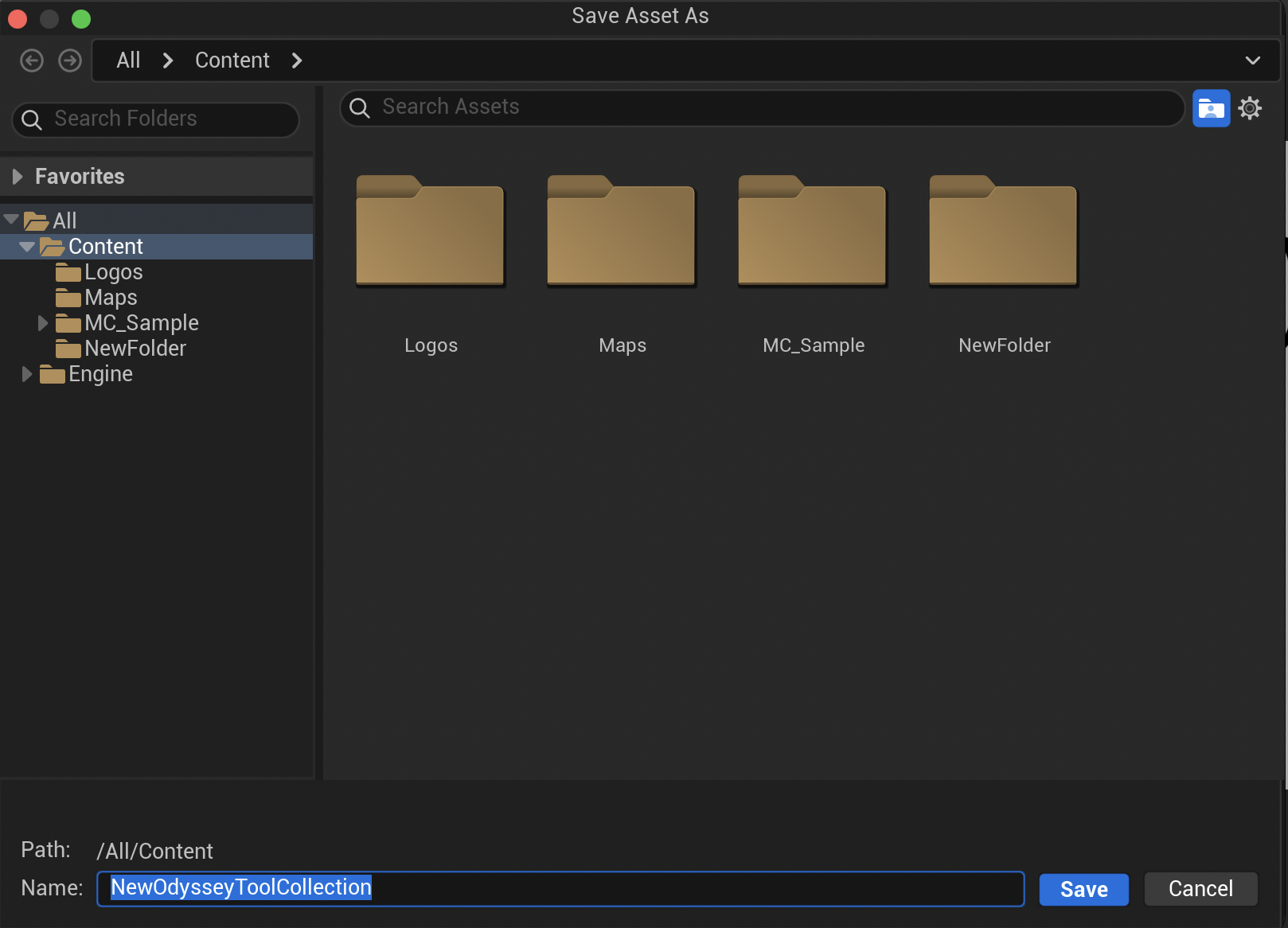
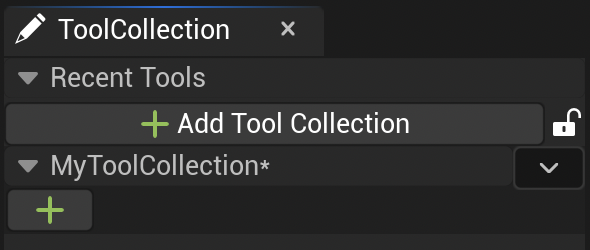
Save the asset in the Content folder. It will be automatically added to the panel:
Tip
You can also create the 2D Paint Tool Collection Asset from the Content Drawer. But you will only be able to edit it from a Texture or Animation 2D Editor.
Add Tool#
After changing the settings of your Tool, click on the green + to store it in the 2D Paint Tool Collection Asset.
Delete Tool#
Make a right click on a Tool to remove it from the 2D Paint Tool Collection Asset:
Duplicate Tool#
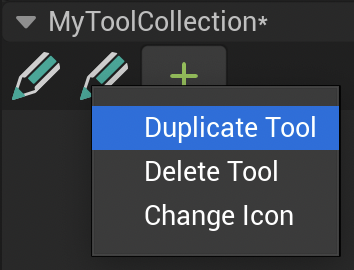
Make a right click on a Tool to duplicate it:
Change Icon#
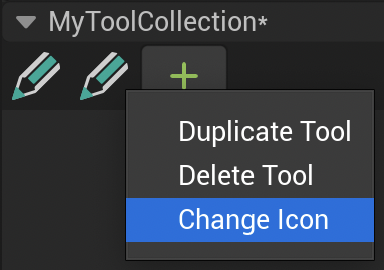
Make a right click on a Tool to change its icon:
This panel will appear:
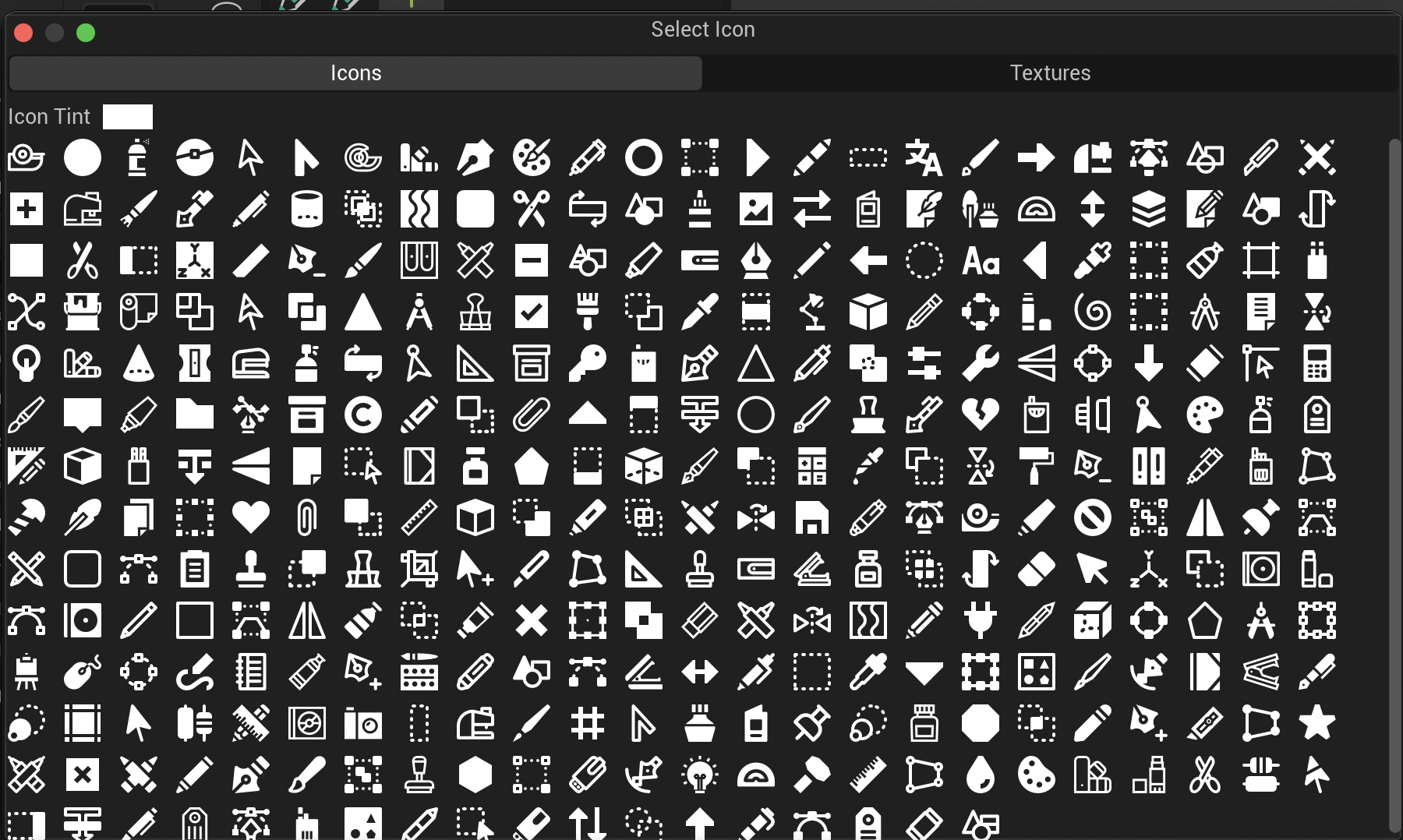
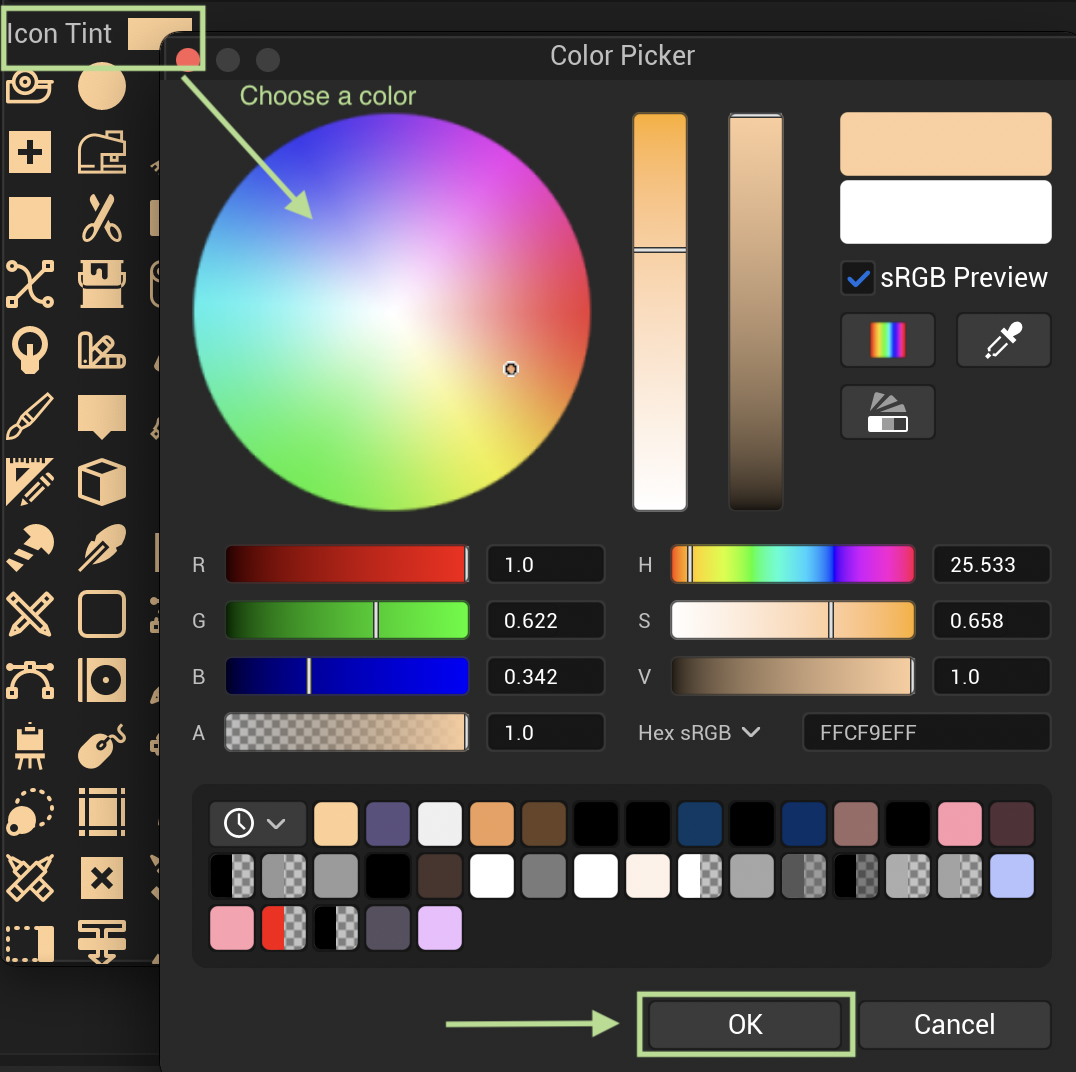
Click on the “Tint” to select another color for the icons.
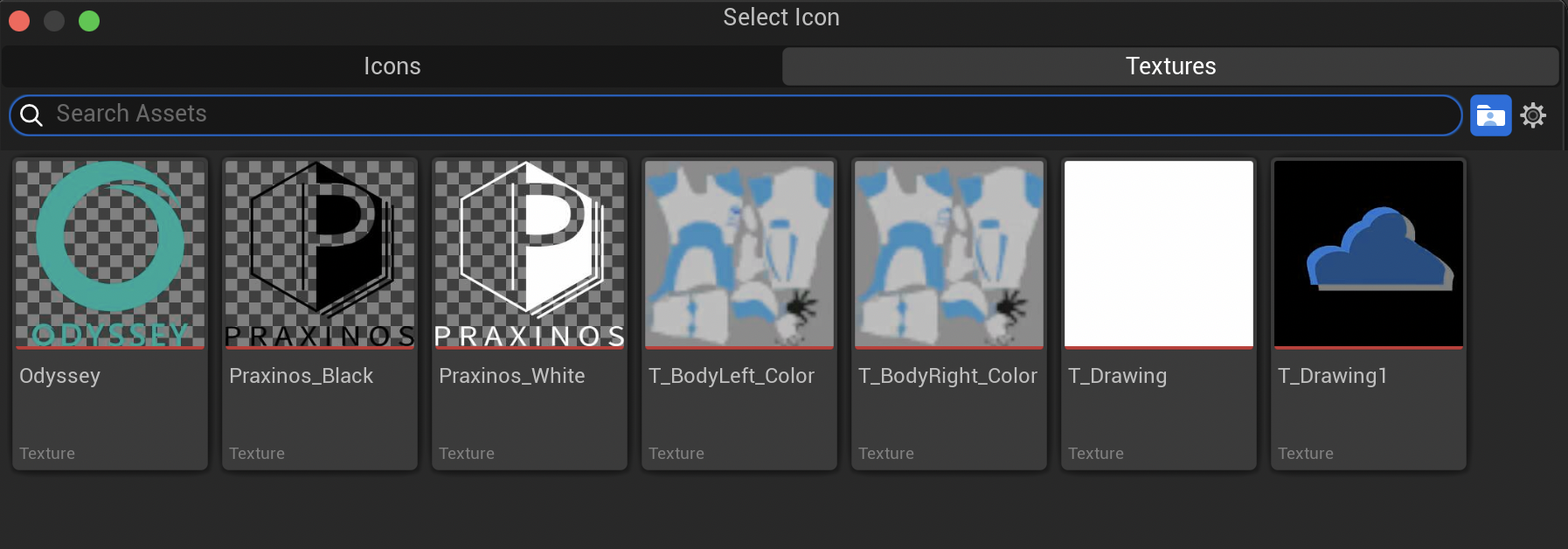
You can also select a Texture 2D in the tab Textures
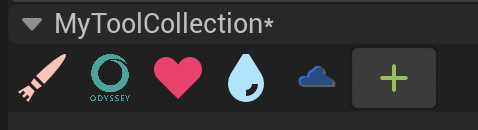
Choose the icon or Texture 2D and make your own set of Tools!
Rearrange Collection#
You can drag and drop your brushes to organise them:
Warning
Even though you can also rearrange Tools between several 2D Paint Tool Collections, there is an issue when saving the asset, so do not move a Tool to another collection for the moment.
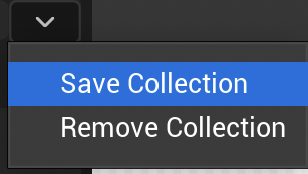
Save Collection#
Use the tiny dropdown menu on the right to save the collection:
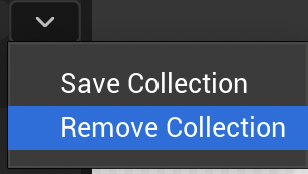
Remove Collection#
Use the tiny dropdown menu on the right to remove the collection:
Note
This action will not delete the asset from your Content folder. It will just remove it from the panel Tool Collection.
Toggle Vector and Raster Tools#
A 2D Paint Tool Collection asset can contain Vector & Raster Tools at the same time.
However, Tools are enabled only following the type of Layer you are working on. Only Raster Tools can work on a Raster Layer ; only Vector Tools can work on Vector Layers.
(Un)Lock Panel#
You can lock and unlock the Tool Panel and prevent new tool addition or modifications. Only the “Recent Tool” section will keep working.