
Plane Distance & Focal Length#
You may notice that when you create a Animation Actor in the Level, the Animation Actor might not be placed over props. And if you stop piloting the camera it becomes even more obvious:
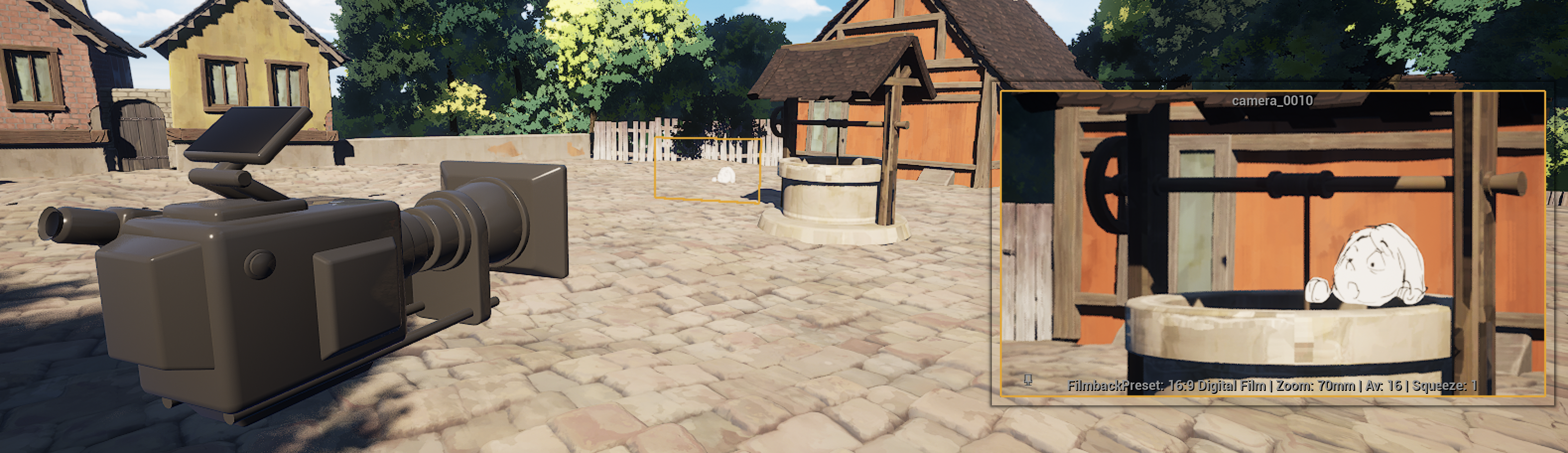
Even if the position of this drawing seems accurate, we can see it’s actually floating in the air#
In this lesson, we will see how to fix that easily.
Distance#
When selecting an Animation Actor in the Sequencer, the following options will be displayed on the Viewport:

Digits Area#
The area with digits allows you to move the Animation Actor away from the Camera or closer to the Camera. The smaller digits are, the closer the Animation Actor is. The bigger digits are, the farther the Plane is.
Actor Picker#
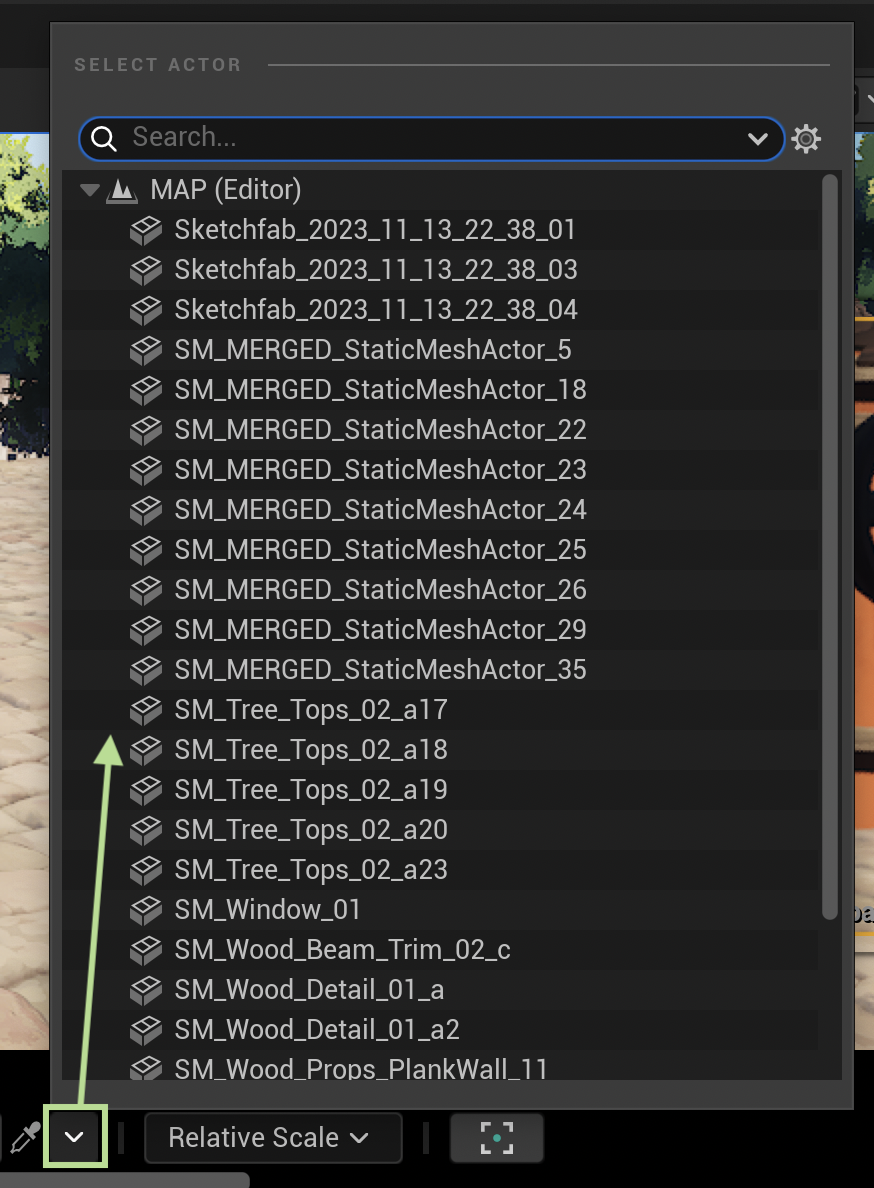
You can use the picker to immediately select another Actor from the view. When enabling the Picker, the Animation 2D Actor will be temporarily hidden to prevent its own selection.
Tip
You can also use the arrow to display the complete list of Actors available in the Level:
Scale Options#
Before changing the distance between an Animation 2D Actor and the Cine Camera Actor, you can modify the scale calculation:
use Relative Scale to keep the same ratio (default mode)
use No Scale to simply move the Animation 2D Actor closer to or further from the camera like any other Actor, without re-scaling it.
Use the reset icon to rescale the Animation 2D Actor and make it fill the camera view:
Warning
By the way, please note the Distance feature can only work if the Animation Actor is centered and faces the camera. If you offset it or if you rotate it, then the option Distance won’t be available anymore.
Focal Length#
When selecting the Camera and not the Animation Actor in the Sequencer, you will also see similar options:
an area with digits
a dropdown menu and 2 options : No Scale and Relative Scale
a reset icon

However, in this case the digits and the options in the dropdown menu will affect the Focal Length of the Camera.
Relative Scale:
No Scale:
Use the reset icon to adapt the size of the Animation 2D Actors to the fill the camera view.