2D/3D Use Cases#
With the Odyssey Editor Mode#
If the conditions explained in this lesson about the Odyssey Editor Mode are fullfilled, you can directly paint on a static mesh.
Painting the Albedo of a Static Mesh#
In the example below, we can paint on the albedo of this blackboard. To be able to do this, we need to select the right Material, then the right Texture 2D:
Painting the Normalmap of a Static Mesh#
In the example below, we can paint on the normal map of this chimney pot. To be able to do this, we need to select the right Material, then the right Texture 2D:
The brush used is one of the numerous brushes from the Brush Pack
Making a 2D animation into the Level#
When you drag and drop an Animation 2D Asset into the Level, you will turn it into an Animation Actor.
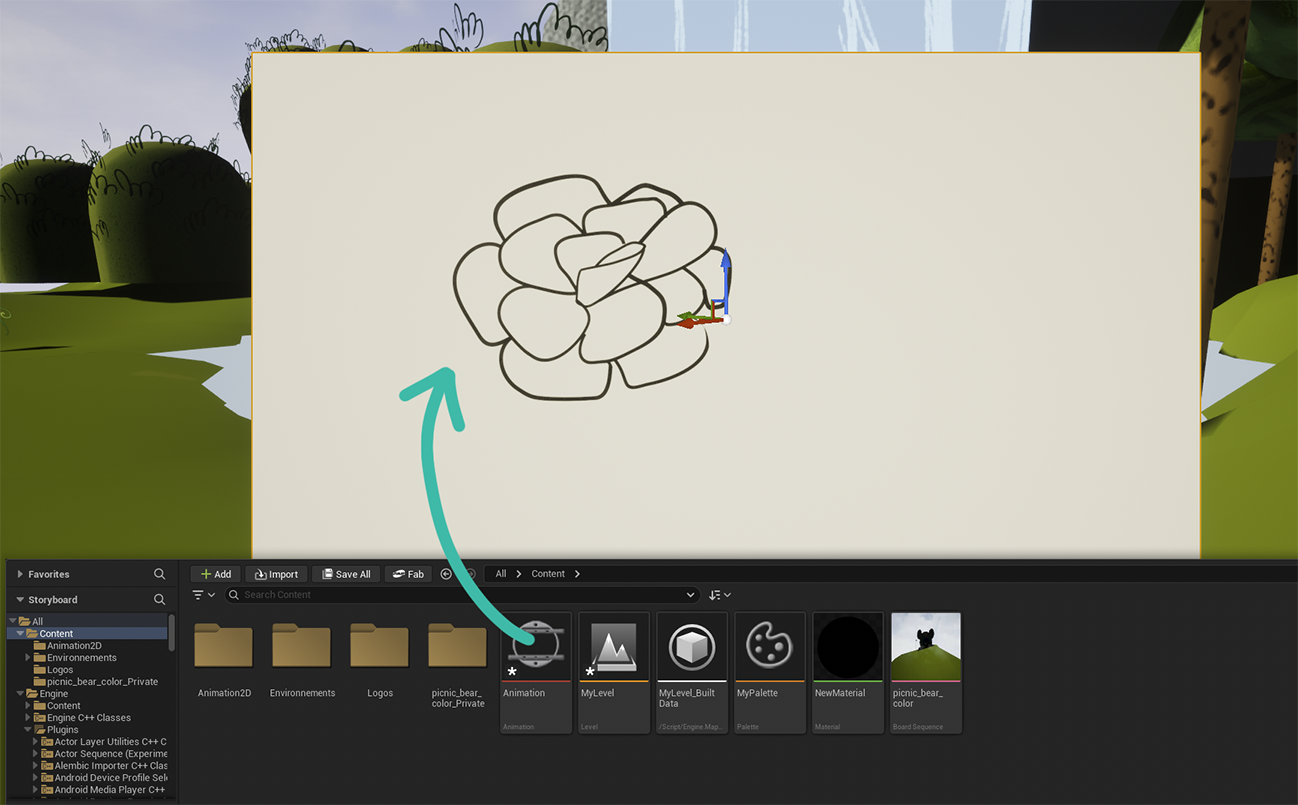
By default, the Animation Actor will face your point of view in the 3D viewport.
Warning
This will only work with the main display of the Viewport. If you add a second Viewport or modify the default layout, this will not work anymore.
You can then use the guizmo to movie it around or rescale it. At this point, you can directly select the Odyssey Editor Mode and continue to animate:
Tip
The Animation Actor can use custom Materials and other Static Meshes than the default ones! Go to the panel Details to change these!
Tip
Animation 2D Actors are also used with the storyboard module! Read this lesson to know more!
Tip
In This lesson you will learn how to use an Animation 2D actor directly into a Level Sequence.
With the 2D Editor opened in a separated window#
Some situations will not allow the Odyssey Editor Mode, for instance painting on Textures 2D used in Foliages, Post-Process Volumes, Flipbooks, Sprites, Tile Maps, Decals or Skeletal Meshes.
In this situation, you will need to open the corresponding 2D editor in a separated window to edit the Textures in real-time.
Painting on Foliages#
Here is an example of a Foliage Actor being painted with one of the numerous brushes from the Brush Pack
Painting on Decals#
Here is an example of a Decal Actor being painted with one of the numerous brushes from the Brush Pack
Painting on Post-Process Volumes#
Here is an example of a Post Process Volume Actor being painted with one of the numerous brushes included by default, that has the ability to prevent “seams” on Textures (which makes the panner loop smooth).
Editing a Tile Map#
Here is an example of a Tile Map Actor being painted with a PixelArt Brush included by default with Odyssey.
Painting on a Skeletal Mesh#
Tip
You can make a “Static Mesh” version of a Skeletal Mesh to paint the character directly in 3D. Since the Static Mesh and the Skeletal Mesh will share the same Material, changes made to the Static Mesh will be applied to the Skeletal Mesh!
Here is an old video that shows the transformation of a realistic fox into a stylized fox: