
Color Modifier#
Color Selector is used to select and modify colors for drawings or animations. It aids in creating color harmony, make incremental adjustments and maintain consistency on a project.
Color Wheel#
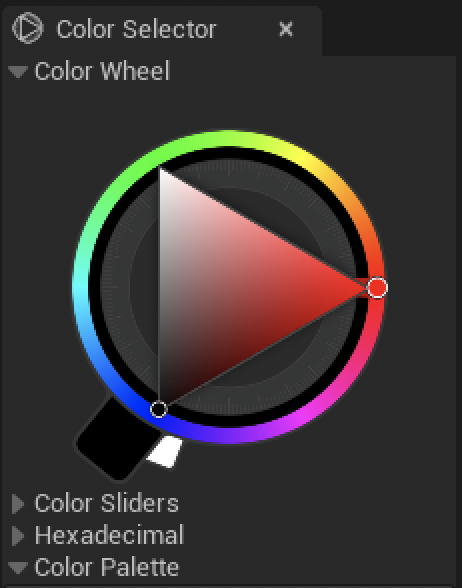
The chromatic wheel, also known as a color wheel, is a circular diagram that displays the relationship between colors. It consists of primary and secondary colors arranged in a circle. Users can select and manipulate colors by choosing positions on the wheel or by rotating it to create harmonious color schemes.
Color Sliders#
Uncollapse Color Sliders to display its settings below Color Wheel.
The Color Slider is a graphical tool that allows users to adjust specific color properties, such as hue, saturation, brightness, or transparency, by sliding a control element along the linear tracks. It provides precise control over individual color components. You can slide the value or enter a precise numeric value in the dedicated area.
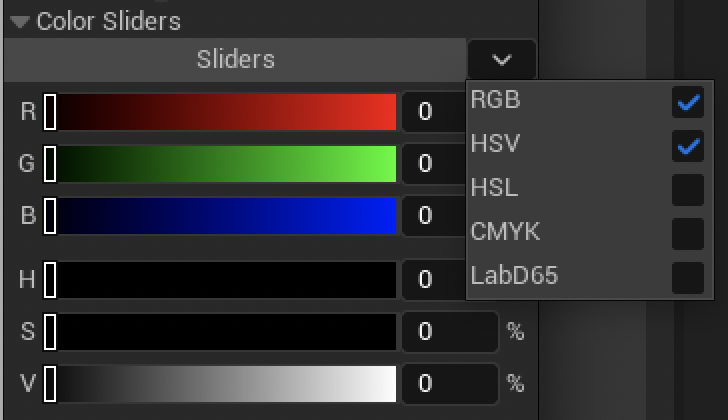
By default, there are 3 sliders (just like in the image above):
RGB: Red, Green, Blue
HSL: Hue, Saturation, Luminosity
Other sliders are available by clicking on the upside down arrow:
HSV: Hue, Saturation, Value
CMYK: Cyan, Magenta, Yellow and Black (which is used for printers)
LabD65: or CIELAB color space, is designed to approximate human vision
Hexadecimal#
Uncollapse Hexadecimal to display its settings below Color Sliders.
This mode is helpful for web designers. Use this field to copy or paste a hex color.

Palette#
Uncollapse Color Palette to display its settings below Hexadecimal.
A palette is a collection of predefined colors or swatches that users can easily access and apply within the software. Palettes can be organized into categories, making it convenient to choose colors for various elements in a project.
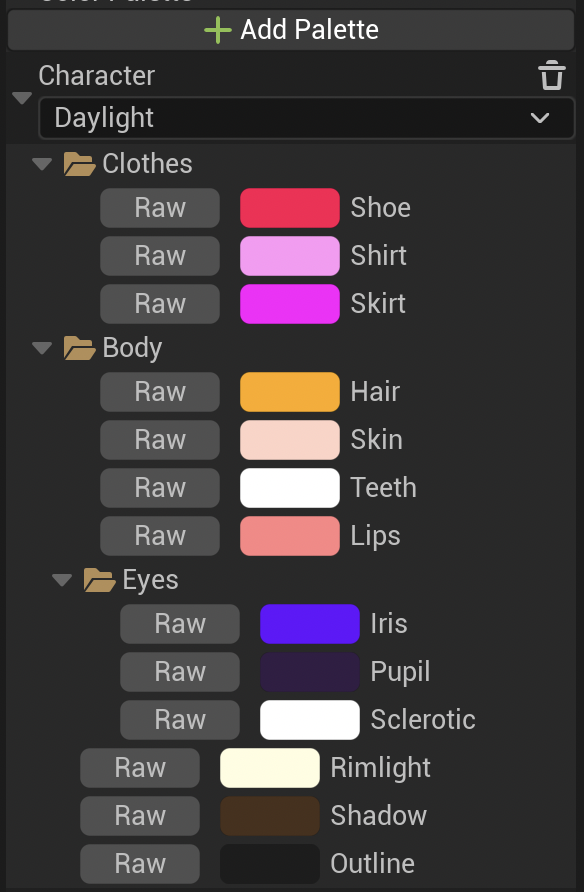
To use this feature properly, please read this lesson.