
Installation Process#
Install Unreal Engine#
To install Unreal Engine, you will need an account on the Epic Games Store.
Then, follow the instructions here.
Get Odyssey from Fab#
Use your Epic Games Store account to log in Fab, the official marketplace for Unreal Engine.
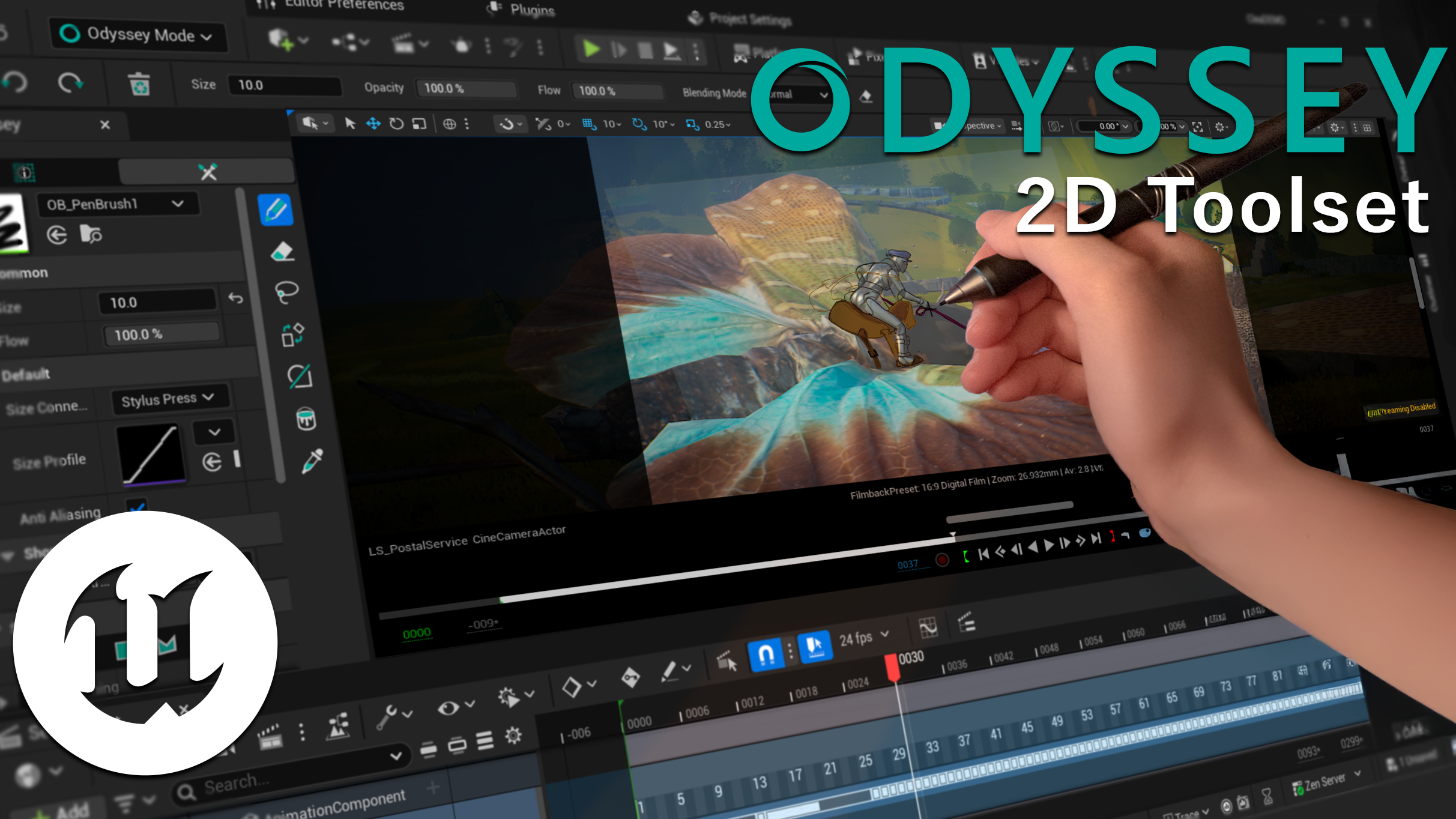
Search for Odyssey or click on the image below:
Add Odyssey to your basket:

Then, you can click to show the plugin in the Launcher:
Install Odyssey to Engine#
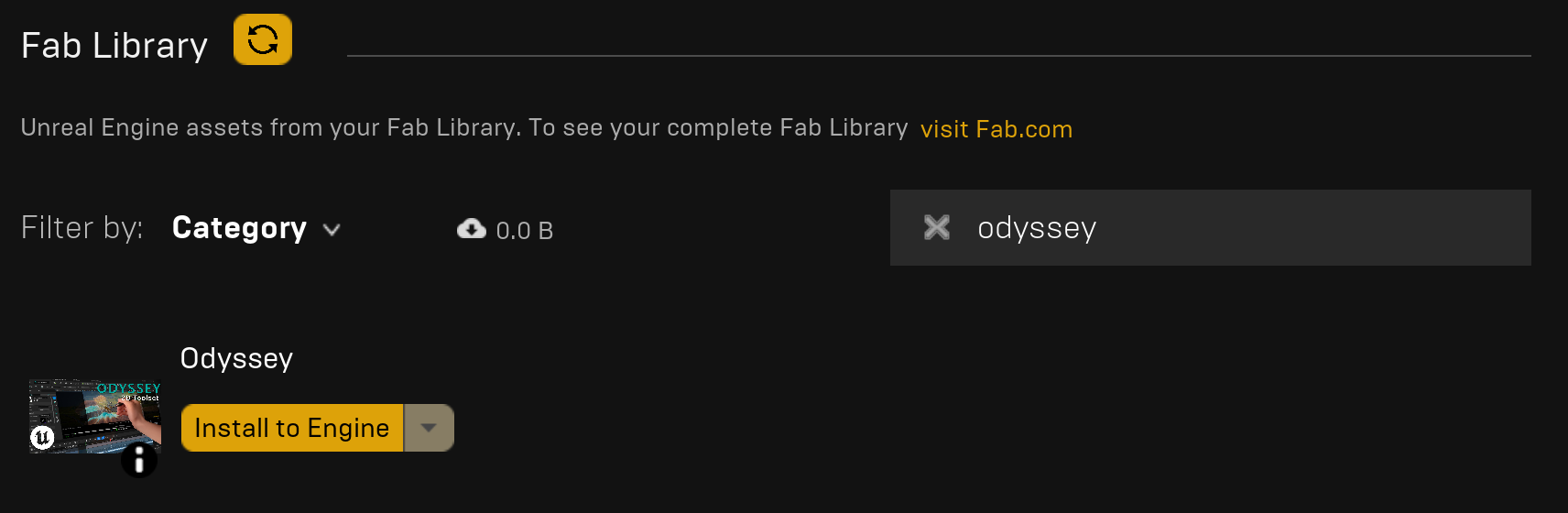
Open the Epic Games Launcher and look for Odyssey in the menu “Unreal Engine ▸ Library ▸ Fab Library”. Click on “Install to Engine”.
Tip
If the plugin does not show up in the Vault, click on the refresh button.
Note
For every major update of Unreal Engine, Odyssey must be installed again.
Enable Odyssey in a project#
Open a project and go to “Edit ▸ Plugins”. Look for Odyssey and enable it. To valid the process, you will have to restart the project.

Congratulations, Odyssey is now installed, but wait before you restartn there is a last thing to do!
Note
Odyssey Plugin will have to be enabled in every projects!
Update Odyssey#
Warning
Make sure you have no instance of Unreal Engine running during the process!
Go to the Epic Games Launcher in the menu “Unreal Engine ▸ Library”. The word “Installed Plugins!” with an exclamation mark indicates that one or several plugins can be updated.
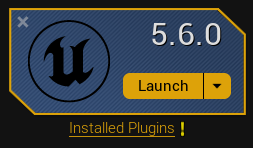
Click on “Installed Plugins!” to display the list of activated plugins.
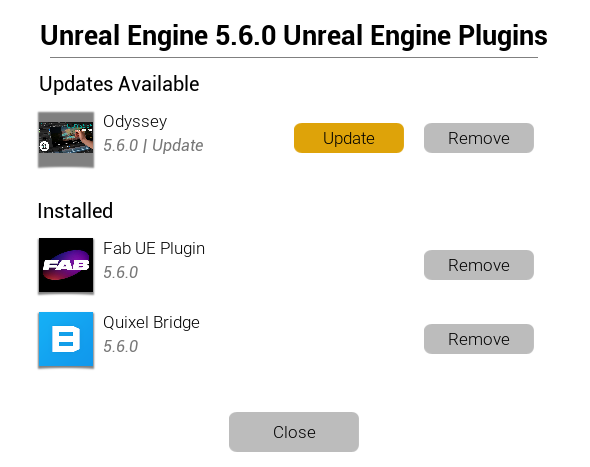
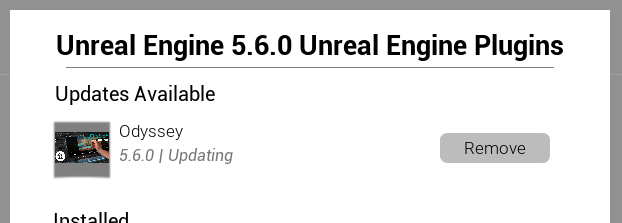
Click on the yellow button “Update” near Odyssey. Then wait for the update to be done.
Uninstall Odyssey#
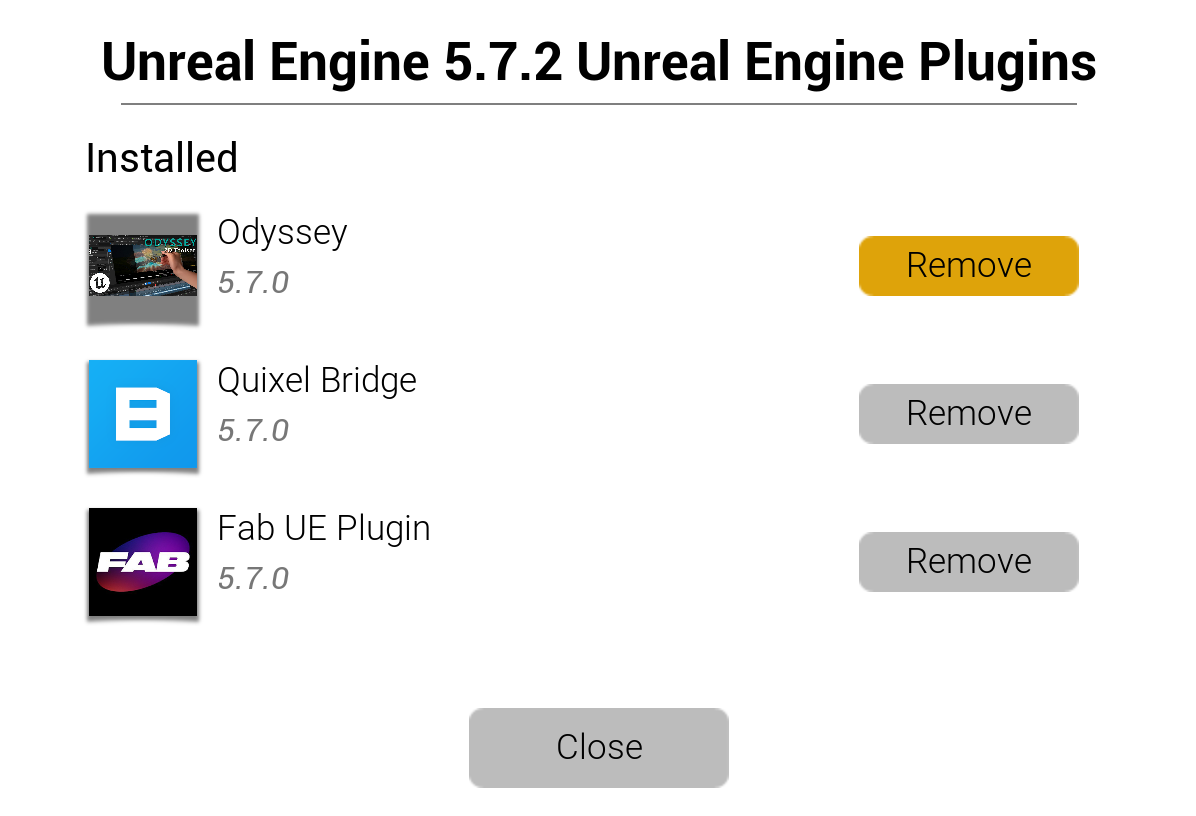
Go to the Epic Games Launcher in the menu “Unreal Engine ▸ Library”. Click on “Installed Plugins” to display a window. Click on the button “Remove” next to Odyssey:
Get Odyssey from the Github repository#
Note
This lesson is for advanced users only who are experienced with compilations through Visual Studio or XCode.
Warning
To prevent conflicts, uninstall Odyssey from the engine. More information about the procedure to be found here.
1. Get the source code#
Download the source code from our GitHub account: Praxinos/Odyssey
Note
Make sure you select the branch related to your version of Unreal Engine before downloading.
2. Create a C++ project#
Create a C++ project with Unreal Engine. This will require you to use a compiler like Visual Studio or XCode.
3. Add the plugin code to the project#
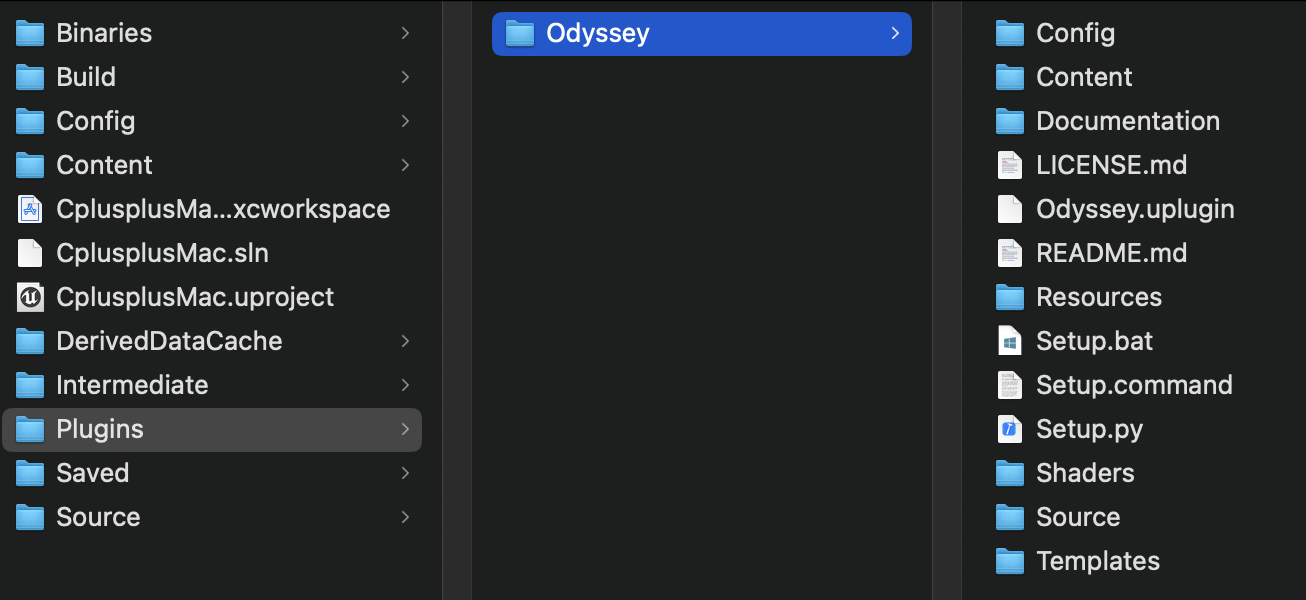
At the root of the project, create a folder named exactly Plugins.
Then, extract the content of the zip with the source code to generate an Odyssey folder with all the source code. Place this Odyssey folder in the Plugins folder like this:
4. Generate project code#
Windows#
To be written
Mac#
Use the Terminal and type the following lines to refresh the xcode project and generate a new one (don’t forget to change the elements in {...})
sh "/{PATH_TO_ENGINE}/{UNREAL_ENGINE_VERSION}/engine/build/batchfiles/Mac/GenerateProjectFiles.sh" -project="/{PATH_TO_PROJECT}/{UPROJECT_FILENAME}.uproject" -game
Then, open the xcode project and build it with XCode.