Viewport#
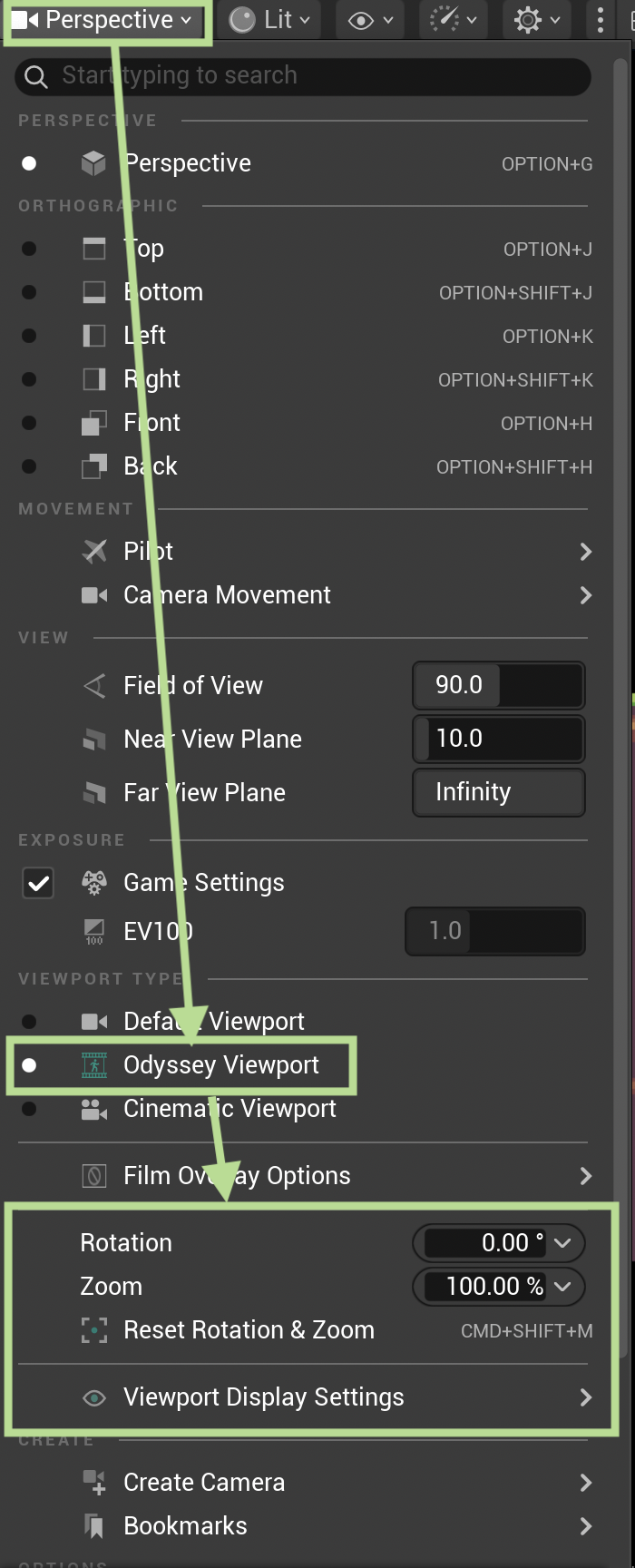
Odyssey brings an additional viewport to Unreal Engine named Odyssey Viewport, to be selected on this menu:
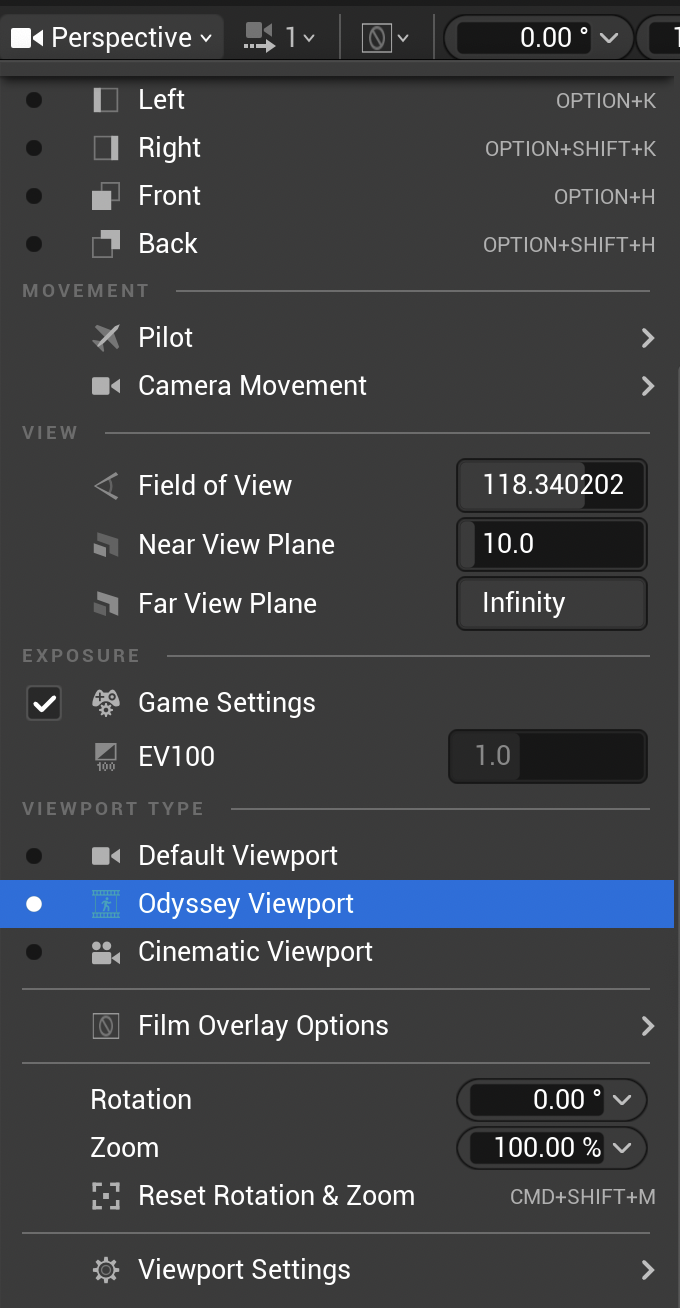
We advise you to choose this one when working your 2D animations or storyboard with Odyssey, as they offer much more options than the defaults viewports from Unreal Engine.
Pan, Zoom & Rotate#
Shortcut |
Video |
|---|---|
Pan the viewport with M+LMB + drag |
Tip You can also use the sliders on the right and at the bottom to pan the viewport. |
Zoom in and out the viewport with M+RMB + drag |
Tip You can also use this field to zoom in and out: 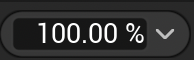
|
Rotate the viewport with Ctrl+M+LMB + drag |
Tip You can also use this field to rotate the viewport: 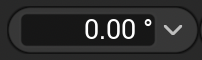
|
You can reset pan, zoom and rotate thanks to this icon at the top right corner.
Options#
The gear icon can be used to modify the display of the Storyboard Viewport:
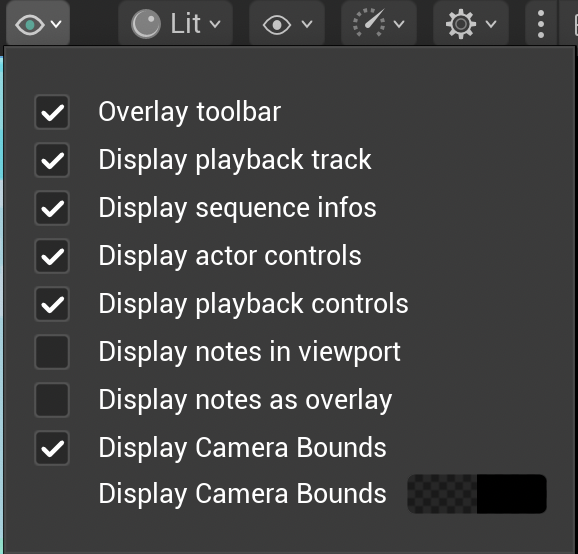
Option |
Description |
|---|---|
Overlay Toolbar |
When activated, the toolbar will be part of the view, which might crop a little part of the viewport. You should disable it. |
Display playback track |
Displays a tiny track that symbolises what’s before the current frame (in white) and what after the current frame (grey). 
|
Display sequence info |
Displays the name of the Sequence on the left and the current frame on the right. |
Display actor control |
Displays Planes and Camera controls (read the lesson about Plane Distance and Camera Focal Length) |
Display playback controls |
Displays the the remote control to play the sequence. |
Display notes in viewport |
display the Notes between the camera view and the playback control (read the lesson about Notes) |
Display notes as ovelay |
Display the Notes as subtitles in the camera view (read the lesson about Notes) |
Display Camera Bound |
When enabled, this option applies a watermark color on the viewport beyond the camera view. You can change the opacity or the color by clicking on the black rectange. Don’t forget to press OK to confirm your choice. |
Tip
Your monitor is too small and you cannot see all the options above? Click on this dropdown menu to show them all: